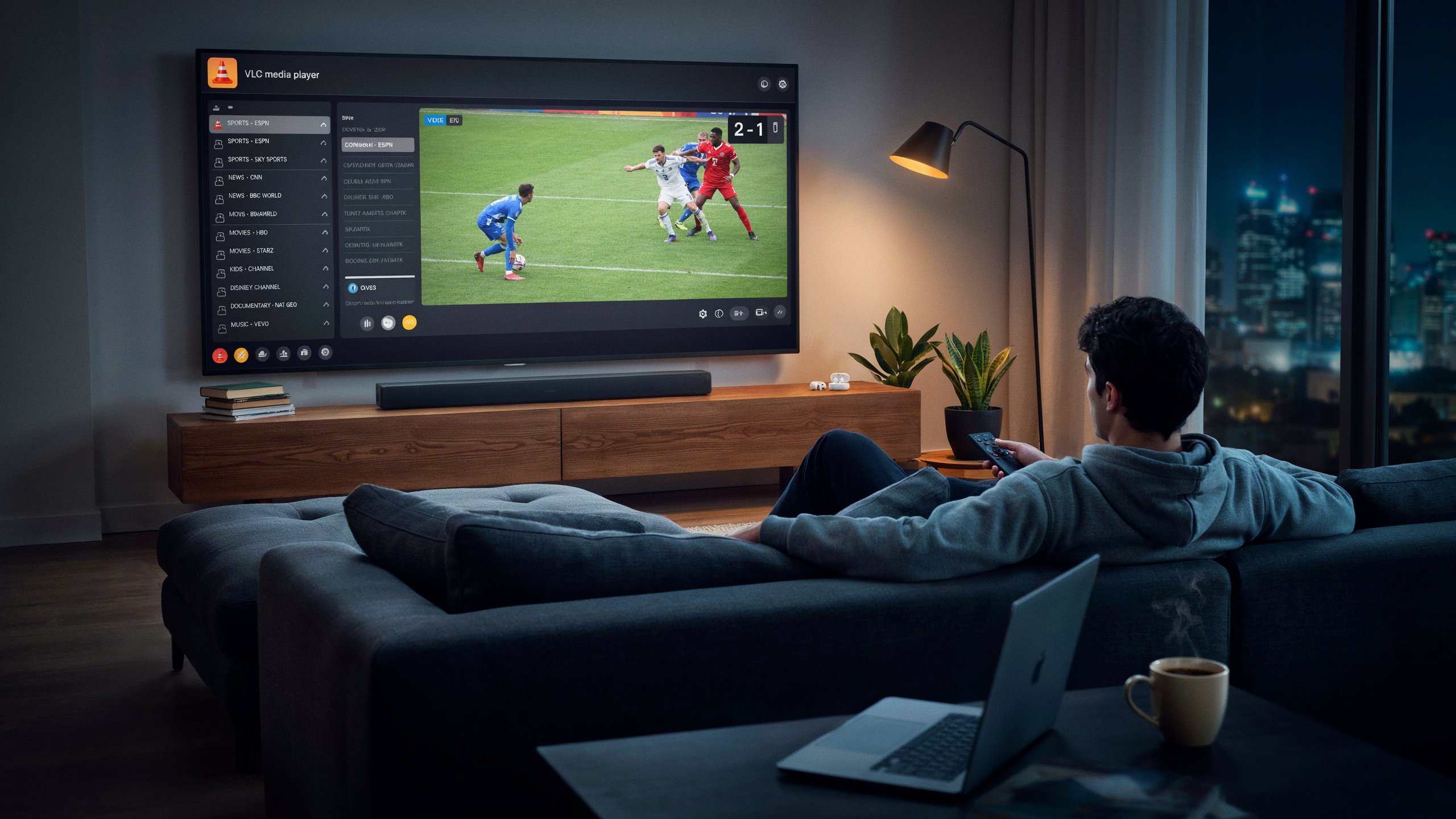
Using VLC as an IPTV player is one of the most reliable, lightweight, and completely free methods to stream live television channels directly on your computer or desktop device. Whether you are running Windows, macOS, or Linux, learning how to configure vlc iptv playback gives you instant access to thousands of live sports events, news networks, and on-demand entertainment without purchasing extra set-top hardware.
In this step-by-step tutorial, we will walk you through downloading the official software, grabbing your playlist credentials from a top-tier stable iptv service 4k, configuring network streams, and troubleshooting channel buffering inside your vlc iptv player setup.
Step 1: Download & Install VLC Media Player
To begin using iptv vlc streaming, you need to download and install the official version of VLC Media Player on your operating system. VLC is open-source media software that supports a wide array of video formats, network protocols, and streaming codecs natively.
Select and download the installer that matches your system architecture (Windows 32-bit, Windows 64-bit, macOS, or Linux):
When downloading from the official portal, click the drop-down arrow next to the download box to select your exact system version:
- Windows / Windows 64-bit: Standard installation for modern PC hardware running Windows 10 or Windows 11.
- Windows ARM 64: For lightweight ARM-based laptops and tablets.
- macOS / Apple Silicon: Optimized for Mac computers with M1, M2, M3, or Intel processors.
- Linux & Mobile: Downloads available for Ubuntu, Debian, Android, and iOS devices.
Step 2: Get Your M3U Playlist Credentials
Once you have setup the VLC media player on your system, you need an active m3u playlist from your subscription provider. VLC relies on this playlist file or URL to populate channel channels, Electronic Program Guide (EPG) metadata, and live stream addresses.
Need a High-Speed M3U Playlist for VLC?
You can get your instant m3u playlist credentials and check our competitive iptv price in usa plans directly from our portal.
Get Your M3U Playlist & Compare Plans →Step 3: Step-by-Step Guide to Setup IPTV on VLC
Follow these exact steps to load and stream live television channels inside your player:
1. Open Network Stream Control
Launch VLC Media Player on your computer. Click on Media located on the top left navigation bar, then click on Open Network Stream... (or press Ctrl + N on Windows / Cmd + N on Mac).
2. Enter Your M3U Playlist Network URL
In the Open Media dialog window, click on the Network tab. You will see a text box prompting: "Please enter a network URL:".
Paste your full M3U stream link into the field. Your network URL will typically look like this structure:
username and password with the authentic credentials issued by your active provider.
3. Load & Play Your Channel Streams
After entering the URL correctly, click the Play button in the bottom right corner of the window. After clicking on play, you need to wait a few minutes while your M3U playlist is being loaded into local memory. Once finished loading, the channels contained within the M3U list will be displayed in the main playlist panel.
4. Accessing Your Full Channel List
To view all loaded channels, press Ctrl + L on your keyboard (or go to View > Playlist). Double-click any channel category or live channel name to immediately begin 1080p or 4K playback.
Prefer Visual Instructions?
Watch our step-by-step video tutorial explaining how to configure VLC playlists and stream settings:
▶ Watch VLC Setup Video on YouTubeTips for Optimizing VLC IPTV Streaming
To ensure buffer-free playback when streaming high-bitrate live TV and VOD channels on VLC, consider adjusting these essential settings:
- Increase Network Caching: Open Media > Open Network Stream, check Show more options at the bottom, and set Network Caching from 300 ms to 1000 ms or 2000 ms. This buffers stream data in advance to prevent stuttering.
- Hardware Acceleration: Go to Tools > Preferences > Input / Codecs and set Hardware-accelerated decoding to Automatic. This offloads video rendering to your GPU.
- Save Playlist Locally: Go to Media > Save Playlist to File to store an offline
.m3ucopy on your desktop for faster loading times upon launch.
Frequently Asked Questions (FAQs)
How to put M3U on VLC?
To put an M3U playlist on VLC, launch the application, press Ctrl + N, paste your M3U URL into the Network URL field, and click Play. Alternatively, you can download the .m3u file directly to your desktop and drag-and-drop it straight into the open VLC window.
How to setup IPTV?
Setting up IPTV requires three core components: a compatible device (PC, Smart TV, or Firestick), an IPTV player app (such as VLC, TiviMate, or IPTV Smarters Pro), and active M3U or Xtream Codes login credentials provided by a subscription service. Once entered into the player app, your channels load automatically.
How to stream TV channels on VLC Player?
You can stream TV channels on VLC Player by importing an M3U network link, opening the Playlist panel (Ctrl + L), and selecting your desired category. Double-clicking any channel initiates live streaming instantly.
Why is my VLC IPTV stream lagging or buffering?
VLC stream lagging is usually caused by low network caching values, ISP bandwidth throttling, or high-traffic server loads. You can fix this by increasing VLC's network buffer to 2000 ms or connecting through a streaming-optimized VPN.
Can I record live IPTV streams inside VLC?
Yes. Go to View > Advanced Controls in VLC to enable the red Record button. While watching a live channel, press the Record button to capture and save video segments directly to your local computer storage.